Exchange 2016 and 2013: Planning and Design Guide
I have been receiving numerous emails requesting a build and design guide for Exchange 2013, so here you go.
Just adding some useful reference for DAG planning and Site Resiliency:
DAG: Beyond the “A” – http://blogs.technet.com/b/exchange/archive/2011/09/16/dag-beyond-the-a.aspx
Site Resilience Impact on Availability – http://blogs.technet.com/b/exchange/archive/2014/06/06/site-resilience-impact-on-availability.aspx
Site Resiliency Calculator – http://gallery.technet.microsoft.com/Resilience-Impact-on-7f97ced9
Ask The Perf Guy: Sizing Guidance Updates For Exchange 2013 SP1 http://blogs.technet.com/b/exchange/archive/2014/04/03/ask-the-perf-guy-sizing-guidance-updates-for-exchange-2013-sp1.aspx
In order to get correct designing of resources we need to do planning and designing the Exchange environment. We can achieve some good design by following the below steps:
-
Message count and size calculation:
We have 3 options to do the calculation
-
Follow Microsoft recommended default value in the Server role calculator or do some assumption. We might need to go for this option when we are building a new ORG which never exist.
-
Profile Analyer: We can use profile analyzer until Exchange 2007.
This can be downloaded from the below blog which is also guiding the steps: http://blogs.technet.com/b/neiljohn/archive/2011/08/02/exchange-user-profile-analysis.aspx
-
Running the script mentioned in the below blog:
Profile analyzer used to help us until 2007 because of webdav component. Microsot removed webdav from Exchange 2010. So we found this was to run the script to gather message tracking data to work it out. So we will be running this script mentioned in the Microsoft Blog to get the following 3 parameters. Run the script and follow the below blog to get the following value which will help in Exchange 2013 Calculator.
-
I would recommend running the script to get 30 days of data. Which will require you to run this script for 30 times 1 per day.
| Message Received per mailbox per day | message | |
| Message Sent per mailbox Per Day | message | |
| Average Message Size | KB |
2. Exchange 2013/2016 Server Role Calculator:
- We can calculate Processor, Memory, IOPS required and DB disk Size using Exchange 2016/2013 server role Calculator version v7.8 which is a calculator for both Exchange 2016 and 2013.You can download it from the link below: https://gallery.technet.microsoft.com/office/Exchange-2013-Server-Role-f8a61780 To get the processor spec, download the calculator mentioned in the link below and run query http://blogs.technet.com/b/exchange/archive/2010/10/27/3411397.aspxOrYou can run the full Processor report here http://www.spec.org/cgi-bin/osgresults?conf=rint2006. Point to be noted “Database+Log Volume Space Required” includes recovery disk, if this is not selected then the size will be adding recovery space for every DB.
|
Disk Space Requirements |
/ Database |
/ Server |
/ DAG |
/ Environment |
| Transport Database Space Required | ||||
| Database Space Required | ||||
| Log Space Required | ||||
| Database+Log Volume Space Required | ||||
| Log Volume Space Required | ||||
| Restore Volume Space Required |
Another point to be noted that Servers required for CAS role might add 1-2 extra servers for worst case and this is by design. If you expand the + sign then you will see the same.
Microsoft recommends maximum limit on Processor and Memory here. http://blogs.technet.com/b/exchange/archive/2015/06/19/ask-the-perf-guy-how-big-is-too-big.aspx
Processor Max 24
Memory Max 96GB
Also check the Processor Calculation Blog here. https://msexchangeguru.com/2016/06/07/exch-proc-calc/
In order to get the correct output we should have the following configured for the Database disks.
- In your SAN try to make multiple Lun. Separate Lun for Separate DAG server (E2013 can handle DB’s and logs on same drive though)
- Partition Style – GPT
- Allocation Unit Size – 64K
- Format – ReFS for databases, logs and Transport database. NTFS for OS and Exchange Binary drive.
- Simple Volume
- Compare the IOPS of Jetstress and Exchange Calc.
- Don’t forget to count Transport database disk
-
Also allocate Recovery DB Disk.
4. JetStress 2016 and 2013 Download Jetstress from the below link which has been updated for both exchange 2016 and 2013 and save it to C:\temp
http://www.microsoft.com/en-us/download/details.aspx?id=36849
-
Download Exchange 2016 or 2013 RTM or CU1 or any CU and Extract. The Exchange version depends on the version which you are going to deploy but this jetstress version is going to work for both Exchange 2016 and 2013. Then copy the following files to the temp directory
- Ese.dll
- Eseperf.ini – make sure you copy from en folder
- Eseperf.hxx
- Eseperf.dll
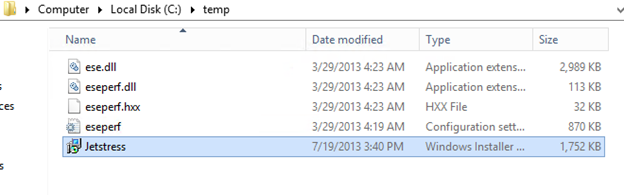
2. Now DoubleClick on JetStress to install the software on your Exchange 2013 mailbox server.
a. Then click Run.
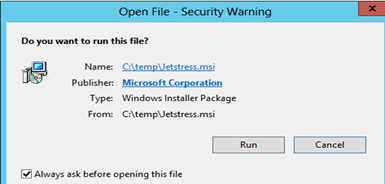
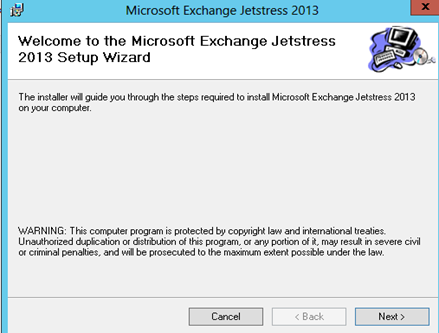
b. Click next
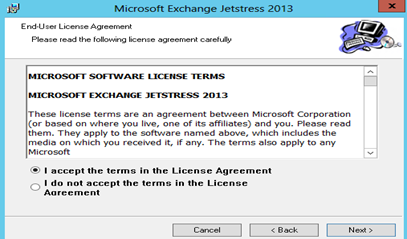
c. Accept the term and click next
d. Provide Installation location and select everyone then click next
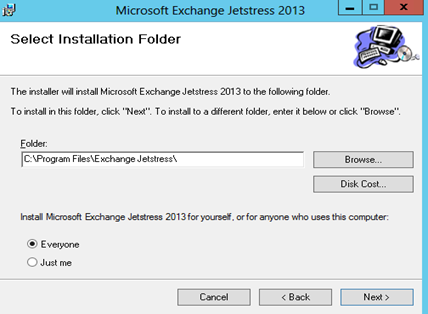
e. Click next on the confirmation screen
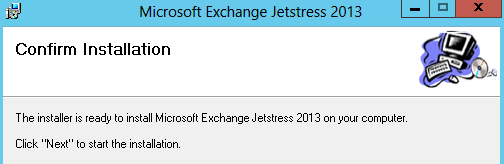
f. This will complete the Jetstress installation. Click close here
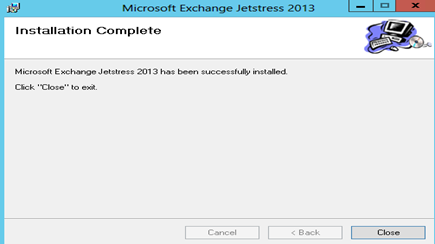
3. Running Jetstress Click on windows key on your keyboard and select the Exchange Jetstress 2013 app.
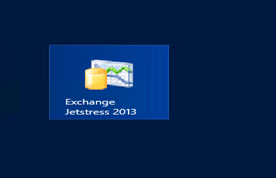
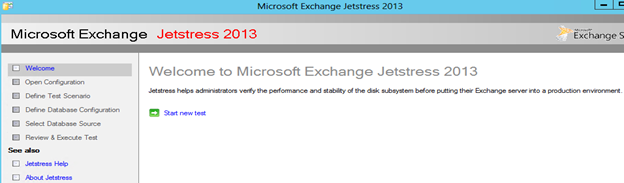
a. This will open the below application screen. Click on Start new test
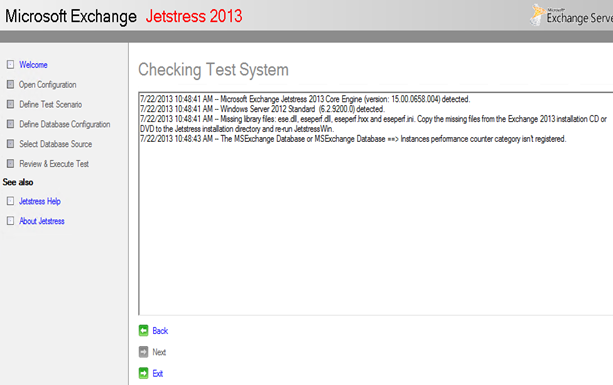
b. Now you will see that Jetstress is asking for the files which we copied to temp location earlier
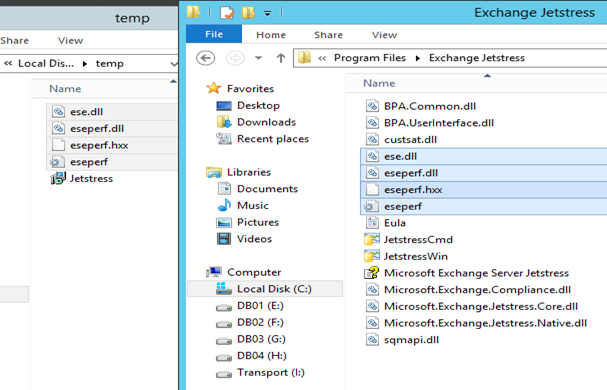
c. So copy these files to Jetstress binary folder mentioned in the screen below
d. Now click back and start the test again. You will see the below screen.
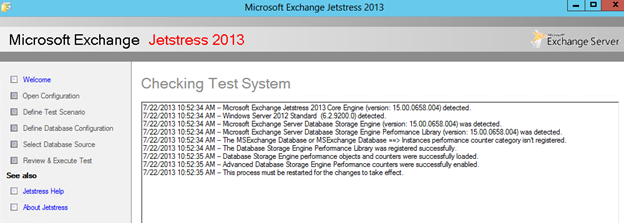
e. Now close the Jetstress app and reopen. Oh we missed something. If you see “The Exchange Database of MSExchange Database ==> Instance Performce counter category isn’t registered” message means you need to open jetstress with run as administrator.
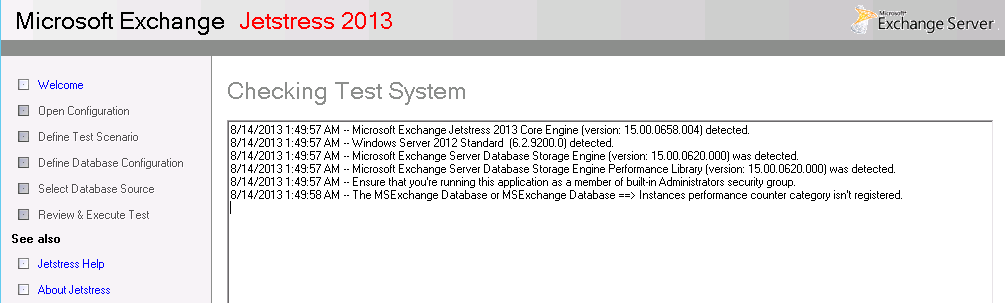
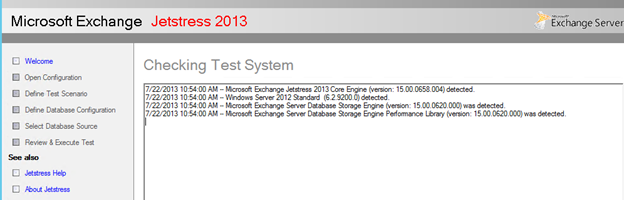
f. So close jetstress and reopen with run as administrator. Then click on start new test again. Now you should see the below screen. Click next here.
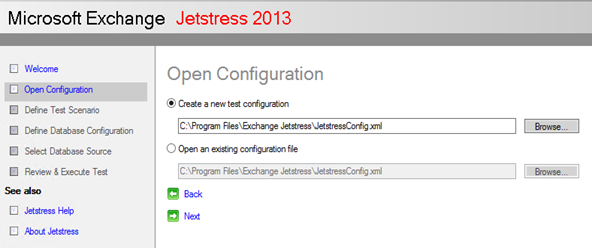
g. Select Create a new test configuration and click next
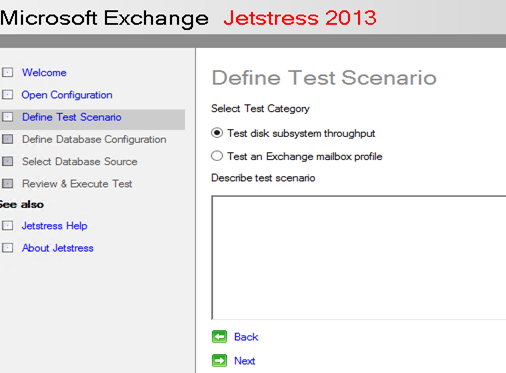
h. Test disk subsystem Throughput and click next
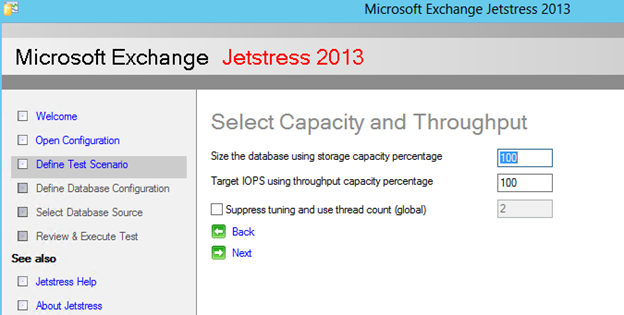
i. Select Capacity and Throughput %. I would recommend the default 100 %. Click next
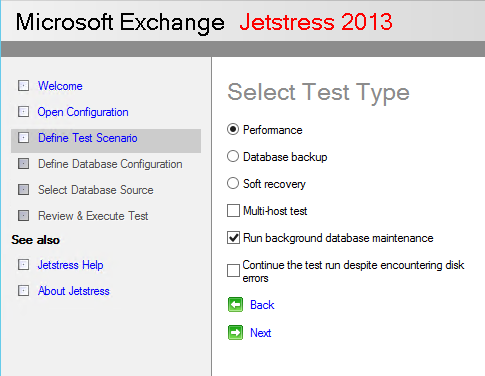
j. Select Test Type. We mostly run to check the Disk performance so select performance and click next. Keep the default checkbox checked.
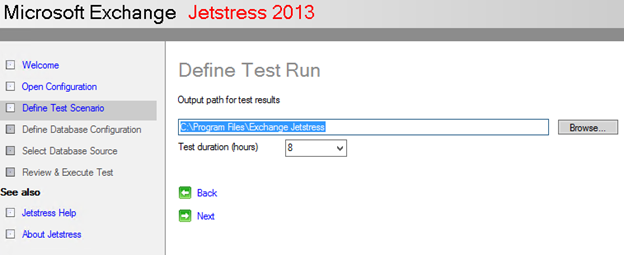
k. Select the output path and test duration. I would recommend running 8hrs to get the action performance. Click next.
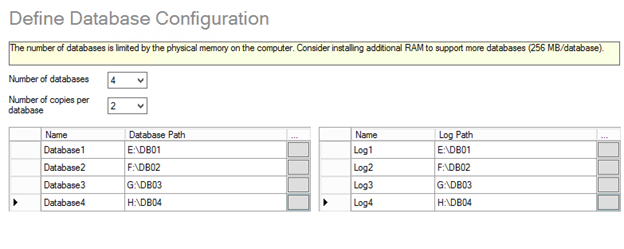
l. Now define the number of DBs and its copies then provide the DB disk directory. This is very import step where you are choosing the disk which will be tested for its performance.
m. Select create new Databases and click next
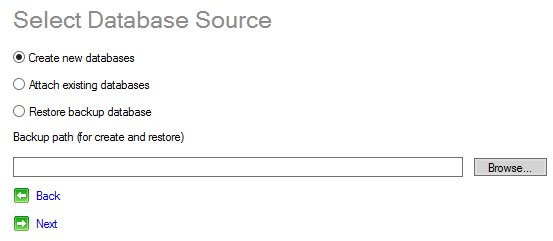
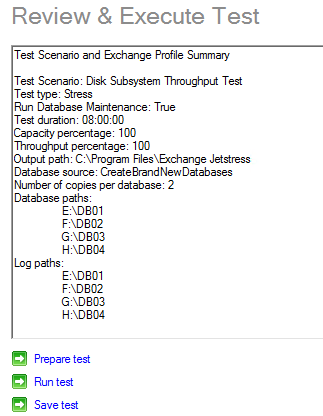
o. Now it will create the DBs for testing. Depending on the Disk size it will be take long time.

p. You should see the below when test preparation finishes. Now Click on Run test to start the Jetstress test
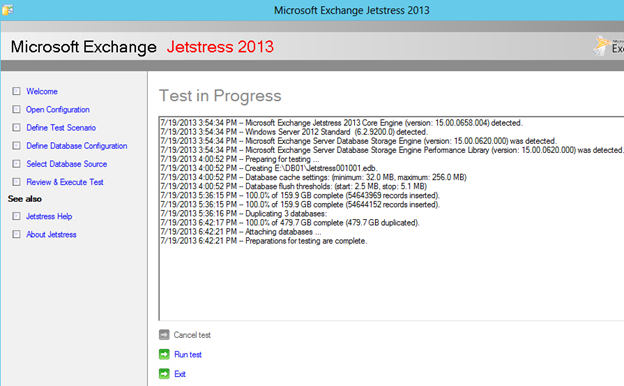
q. “Run Test” Screen. It will run for the number of hours we had mentioned earlier. In my case it will run for 8hrs so I will take some time off and check the status after 8hrs.
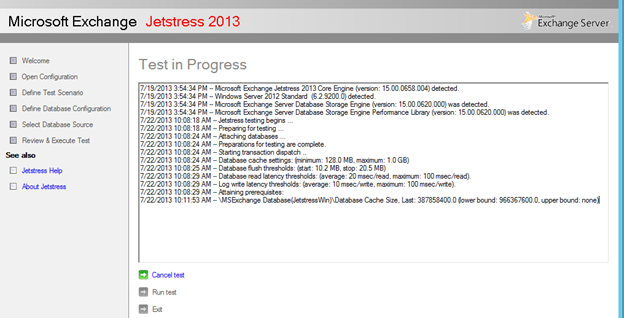
r. Final screen: Jetstress testing has end
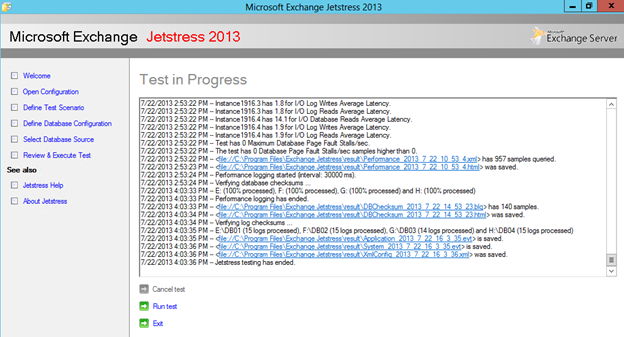
Exchange 2013 Jetstress is available in the jetstress output file.
5.Jet Stress and Exchange Calc Comparison.
-
IOPS Requirement:
Exchange Calc will provide the IOPS requirements
|
Host IO and Throughput Requirements |
/ Database |
/ Server |
/ DAG |
/ Environment |
| Total Database Required IOPS | ||||
| Total Log Required IOPS | ||||
| Database Read I/O Percentage | ||||
| Background Database Maintenance Throughput Requirements |
IOPS getting:
IOPS calculation depend on the configuration we have done for the Database Disk. Like if we have done 300GB partition in a raid with 3 disks so the output of 3 disks will be added to this partition. If 1 disk was giving 50 IOPS then we can get 150 IOPS now.
Open the performance html file.
Achieved Transactional I/O per Second is the main output we compare.
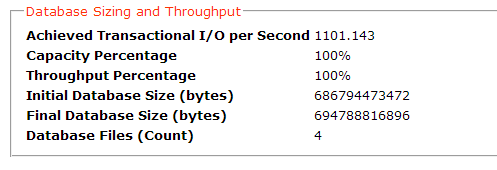
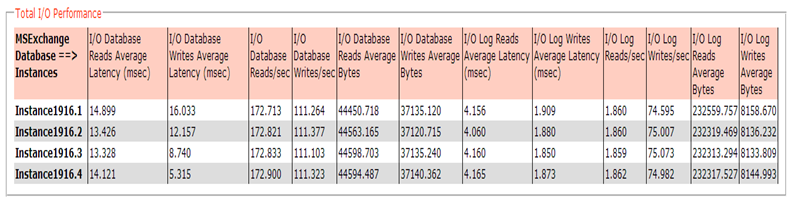
We can also verify the following:
- I/O Database Read/sec
- I/O Database Write/sec
- I/O Log Read/sec
- I/O Log Write/sec
6. Exchange 2013 Bandwidth Calculator
I could not find the exchange 2013 bandwidth calculator so I am using Exchange 2010 bandwidth calculator. I know that the only difference will be Outlook direct connections in the LAN so I am not configuring any value in it.
So use OA to get 2013 Results
You can download Exchange 2010 Bandwidth Calculator here,
http://gallery.technet.microsoft.com/Exchange-Client-Network-8af1bf00
This is good enough to plan the Exchange 2013 Environment.
7. Site Resiliency calculator.
I am adding a site resiliency calculator to calculate the percentage uptime when you go for 2 sites expanded DAG.
The Site Resiliency Calculator can be downloaded from here – http://gallery.technet.microsoft.com/Resilience-Impact-on-7f97ced9
8. Page File Size.
Page file size rule of thumb used to be RAM (memory) + 12MB but now we can see the memory requirement comes very high like 96 GB, 128 GB etc. So Microsoft has changed this rule of thumb starting Exchange 2013. Now Microsoft recommends a fixed pagefile of the smaller of RAM size + 10MB or 32,778 MB (which is 32GB + 10MB) for memory higher than 32GB.
Prabhat Nigam
Microsoft MVP | Exchange Server
Team @MSExchangeguru




August 5th, 2013 at 10:26 am
Very well highlighted the critical points which needs to be taken care while planning – It is informative & Thanks!
August 5th, 2013 at 10:39 am
Thanks buddy !!!
November 2nd, 2013 at 4:46 am
[…] https://msexchangeguru.com/2013/07/30/exchange-2013-planning-and-design-guide/ […]
December 30th, 2013 at 12:00 am
Critical points are highlighted very well…Thanks !!
June 3rd, 2014 at 3:04 am
Very well granular explanation in sequential steps. Thanks for the article
June 7th, 2014 at 7:05 pm
Just added DAG and Site Resiliency links. Enjoy.
February 2nd, 2015 at 11:17 am
The following link does not work.
Site Resiliency Calculator – http://gallery.technet.microsoft.com/Resilience-Impact-on-7f97ced9
Please update the link.
February 2nd, 2015 at 1:45 pm
I have just downloaded from the same link.
May 18th, 2015 at 8:29 am
hello , what should we do at jetstress test when we have to expand our solutions from 10.000 user to 20.000 and set up a new site for the exchange (new servers, storage) ?
May 18th, 2015 at 1:30 pm
Run the jetstress with 100%. It will tell you the IOPS you will get from those Luns and if the Luns pass the test then go ahead.
February 22nd, 2016 at 12:34 pm
Jetstress 2013 can be used for testing Exchange 2016? Is there an official statement from Microsoft around this?
Thanks!
February 22nd, 2016 at 1:06 pm
Yes, please read the details here. I am going to run it today on my customer’s 2016 as well. ????
https://www.microsoft.com/en-us/download/details.aspx?id=36849
June 7th, 2016 at 12:59 pm
[…] past we have discussed how to do the designing and planning for the exchange server infrastructure here. […]